 Nexus
How to install the Nexus Android app
The Nexus app works on Android 10 and newer. It isn't on Google Play yet, so you install it from this site. Your phone shows a warning or two when you do. That's normal for an app from outside the store, and this page walks you through each one.
You'll need a Nexus account to use it. Setup tells you when to install the app, and gives you the code that connects it. No account yet? Start a free trial.
1. Download the app
- On your Android phone, open this page in Chrome, and tap Download the app below.
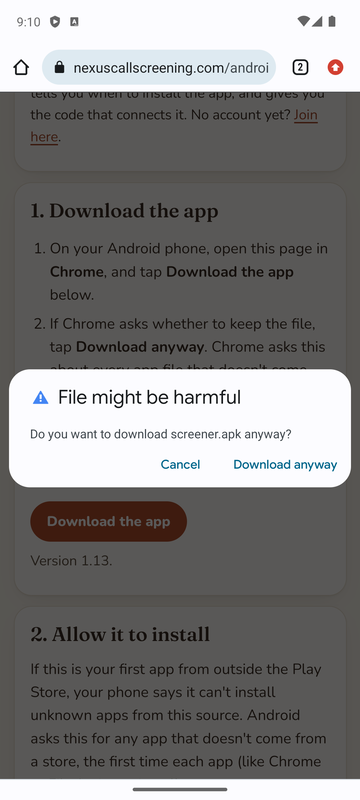
- If Chrome asks whether to keep the file, tap Download anyway. Chrome asks this about every app file that doesn't come from a store.
- When the download finishes, tap Open. You can also find it in your phone's Files app, under Downloads.
Version 1.23.
2. Allow it to install
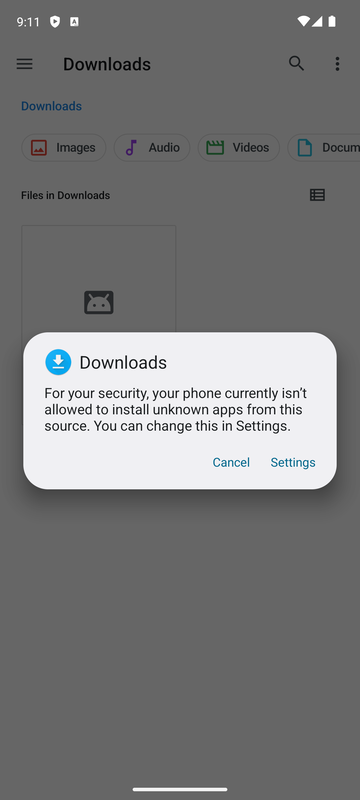
If this is your first app from outside the Play Store, your phone says it can't install unknown apps from this source. Android asks this for any app that doesn't come from a store, the first time each app (like Chrome or Files) tries to install one.
- Tap Settings.
- Turn on Allow from this source.
- Go back, and tap Install.
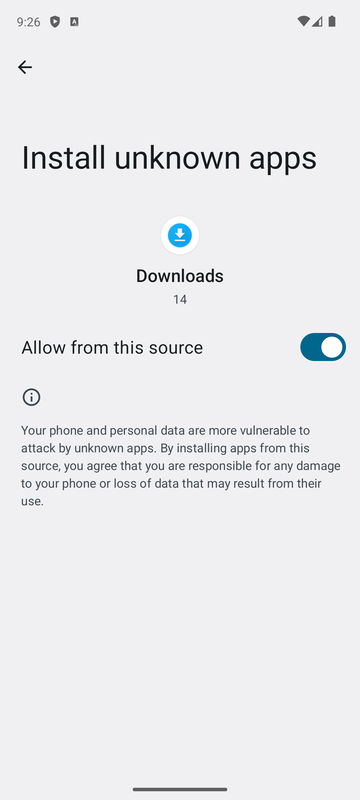
Once the app is installed, you can turn Allow from this source back off. Look in Settings for Install unknown apps, which may be under Apps and then Special app access. Updates to the Nexus app install the same way, so you may be asked again then.
3. If Google Play Protect asks to scan it
If you see App scan recommended, tap Scan app. This is normal for an app that isn't from the Play Store. It takes a moment, then you can install.
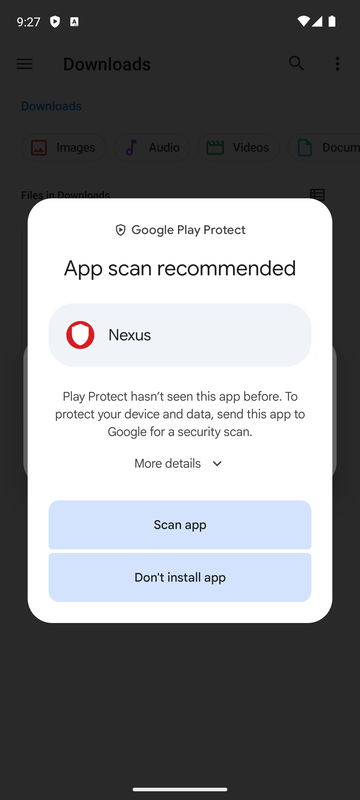
If the scan warns about something, stop, and email us before you install. Don't install a file from anywhere but this site.
4. Connect it to your account
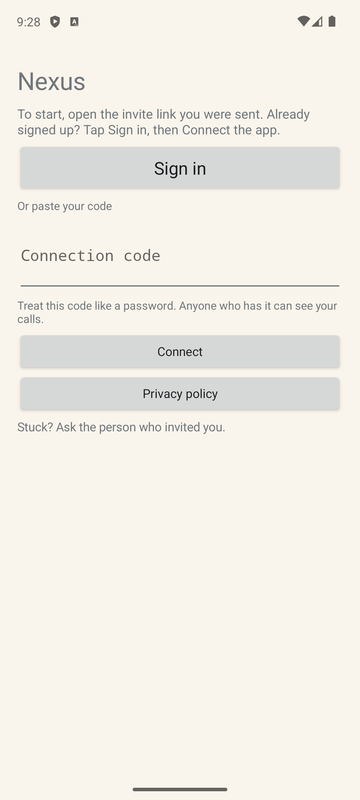
Open the Nexus app. On the Nexus website, the setup step that installs the app has a Connect the app button and a code. Tap the button on the same phone, or copy the code and paste it into the app. Treat the code like a password: anyone who has it can see your calls.
5. Finish setup: what the app asks for, and why
Once it's connected, tap Finish setup in the app. Before each question, the app explains it, then Android asks. Here is every one, in the order they come.
Contacts
People in your contacts always ring. Your list stays on your phone. When the app lets someone ring, it tells Nexus that one caller's number, and that they're someone you know, for about a minute.
Call history
People you've called in the last 30 days always ring, and so does everyone for a day after you call 911. Your call history stays on your phone. As with contacts, the app only tells Nexus the one number it let ring, for about a minute.
Caller ID & spam app
Your phone asks: Set Nexus as your default caller ID & spam app? Tap Set as default. That's what lets Nexus screen calls. Android shows the app each incoming call's number, and the app decides whether your phone rings or the call goes on to Nexus. Until you do this, nothing is screened.
Alerts
So you hear about new voicemail, screened calls and app updates. Phones on Android 13 and newer ask for this. On older ones, alerts are on already.
Background use
So your phone doesn't put the app to sleep. Android asks whether to let the app always run in the background.
If Android says it won't ask again, the app tells you where to turn that one on in Settings. For contacts or call history, that's Permissions, then Contacts or Call logs, then Allow.
Allowed when it installs, with no question
Android allows these when the app installs, without asking:
- Using the internet and seeing whether you're online, to reach Nexus, and to know your phone is online before it tries.
- Starting when your phone does, so its check for new voicemail and screened calls, about every 15 minutes, keeps going after your phone restarts.
- Hiding other apps' windows while it asks you to connect your account, so another app can't draw over that question and trick you into tapping it.
The app doesn't ask for your microphone, location, camera, photos or text messages, and it can't place calls. When setup turns on call forwarding, it opens your phone app with the code filled in, and you press Call yourself.
How to check it's the real app
Every version of the Nexus app is signed with the same certificate. Android checks this itself: it won't install an update over the Nexus app unless it's signed the same way. The certificate's SHA-256 fingerprint is:
1118efa08f517b78e162ba76d64de3724567a8d2d99ed29663bdec5a89ab848d
The file this site serves now, version 1.23, has this SHA-256:
cc27fdad324acf9d53c20bf4a85f8b42a27ca167a2e8b03663b56471e8f5a0e9
On a computer, check a downloaded file with certutil -hashfile screener.apk SHA256 on Windows or shasum -a 256 screener.apk on a Mac. Android's own apksigner verify --print-certs screener.apk shows the certificate.
If something goes wrong
- "App not installed": download the file again and try once more. If it still fails, email us before you uninstall anything.
- No Install button, or nothing happens when you open the file: open it from the Files app, under Downloads, and allow that app to install unknown apps as in step 2.
- A setup code shows "Connection problem or invalid MMI code": turn Wi-Fi off, wait until you have bars from your phone company, and try again. Many phones can't send these codes over Wi-Fi calling. Turn Wi-Fi back on when it's done.
- Have a Google Pixel? Turn off Google's automatic Call Screen, because Google says it doesn't work with call forwarding. In the Phone app, tap ⋮, then Settings, then Call Screen (it may be under Spam and Call Screen or Call Assist), and for each kind of caller choose Ring phone.
Need a hand?
Questions? Email support@nexuscallscreening.com or call (828) 352-8881. Noah answers himself, usually within a day. English · Español
Need help? Email us and we'll set a time to call you.
Nexus home · About Nexus · How to cancel · Privacy · Terms
Last updated .